
Publisher guidance
Converting Postcodes into Geocodes
Converting postcode data into geocodes protects the privacy of recipients while providing useful data that will allow your grants to be analysed geographically and work with the location filtering functions of GrantNav and GrantVis. A geocode is a code referring to a geographical area, like a ward, local authority or county.
The best approach to take depends on how you prepare your 360Giving data and how many grants you have.
This guide will help you use the Find that Postcode website to find or look up geocodes. Find that Postcode is supported and used by 360Giving to power the location functions of our own tools, GrantNav and GrantVis.
How to search for geocodes
You can use Find that Postcode to search for individual geocodes via the homepage search.
First, enter a postcode. You will get details of the full range of geocodes associated with that location. For example, these are the results for the London postcode N1 9AG.
Then, decide which type of geocode to include in your data.
- Some publishers use either Local Authority or Ward areas for recipient or grant locations, as these types of geocodes work with GrantNav’s location filtering functions.
- Place-based funders, such as community foundations, often use smaller areas such as the Lower Super Output Area (LSOA) to provide information about the grant location.
If you’re preparing a small number of grants at a time or only giving grants in a narrow range of areas, then you may find it straightforward and quick to manually search to get the relevant codes and add these to your data.

Using the Postcode to Geocode lookup tool
Find that Postcode has a free and easy-to-use service called ‘Add fields to CSV’ which allows you to upload a list of UK postcodes into the tool and then download a file with corresponding geocodes.
Converting organisation postcodes
If you have a lot of postcodes to convert to geocodes, the practical steps to convert them are:
1. Prepare your 360Giving data, including a column with the relevant postcode data.
2. If using Excel, convert this file into CSV format. See this guidance on how to convert a file between Excel Workbook and CSV.
3. Upload this file into the ‘Add fields to CSV’ service.
4. Select the field that includes your postcode data.
5. Select the geocode types you want added to your file. Latitude/Longitude, Region and Local Authority are selected by default, but you can untick them if you don’t need them.
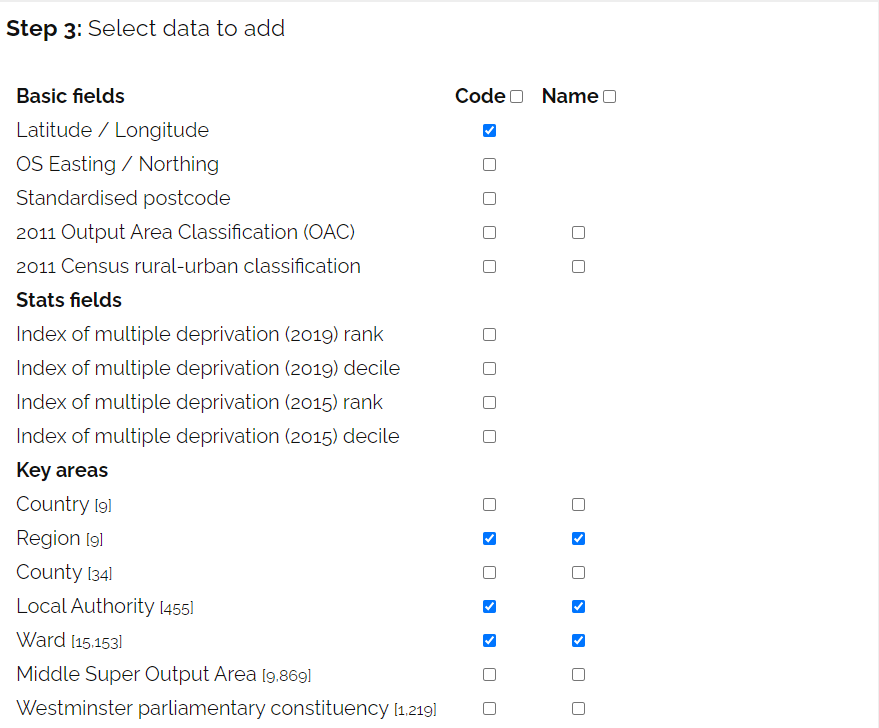
6. Click the ‘Add data to CSV’ button at the bottom of the page. The tool will automatically download an updated version of your file, with geocodes included.
7. Delete the column of postcode data from this version of the file.
8. Rename the new columns to match the 360Giving Data Standard. For example, if using Ward codes for recipient organisation locations, the headings should be renamed as follows:
- Ward Code = Recipient Org:Location:Geographic Code
- Ward Name = Recipient Org:Location:Name
9. Re-save the file as an Excel file (xlsx file format). This file is your new 360Giving data file.
Converting individual address postcodes
The Grants to Individuals Data Preparation template has been set up to make it even easier to convert postcodes to geocodes using the Find that Postcode’s ‘Add fields to CSV‘ service.
Follow these steps to convert the postcodes in your data into Ward geocodes.
1. Copy all the postcodes in your source data from column D of the source_data sheet into column A of a new file. Do not include the first two rows (highlighted orange in source_data), but do include the third row containing the title ‘Recipient Postal Code’.
2. Save the file as CSV UTF-8 (Comma delimited) and give it a suitable name – e.g. Postcode_lookup.

3. Upload this file to the ‘Add fields to CSV‘ service.
4. Select the field that includes your postcode data, named Recipient Postal Code.
5. In the Key areas section, also tick both Ward Code and Ward Name. Latitude/Longitude, Region and Local Authority are selected by default and should be included too.
6. Click the yellow ‘Add data to CSV‘ button at the bottom of the page. The tool will automatically download an updated version of your file with the geocodes and place names in eight extra columns.
7. Paste the data from the downloaded Postcode_lookup CSV file into the geo_data sheet in your template, ensuring that column A includes your postcodes. The downloaded file will have the suffix geo added to the file name, e.g. Postcode_lookup_geo

8. A lookup formula in the 360_data sheet will then look up the Ward and Local Authority names and geocodes from the geo_data sheet, populating the data in columns N to S for you.

Using Find that Postcode and data protection
When using the ‘Add fields to CSV’ service, your file of postcode data does not leave your computer. For data protection, a code is created based on each postcode in your file, and it is this code that is sent to Find that Postcode.
This provides a level of privacy protection, and because the initial file you provided only includes postcodes and no other identifying information, the risks of using the service with personal address data have been minimised.
Find that Postcode’s full statement about privacy can be found on this page.